Showing posts with label tricks facebook. Show all posts

Submit your post to Tumblr, Linkedin, Facebook and Twitter automatically free

|0 comments
Every blogger expects a good traffic for his websites after doing a hard work on his blog or website. Today we have got a great online tool that can submit your blog post to Tumblr, Linkedin, Facebook, Twitter. The most amazing thing about this tool is that you do not have to submit your blog post manually after every post made by you. It will automatically post on behalf you. This amazing tool name is dlvr.it. You have work one time in your blog and it will work for you every time. Before going to submit your blog to social networking sites, you must have to create a feed for your blog. If you have already created feed for your account then just go ahead.

Create an account in dlvr.it, If have you not an account on dlvr.it. After creating the account login to your account and you will see on the left side :
Put your blog feed address in feed url. After that select which post you want to publish on these sites and click on next button. Now, you will see on the right side of the page.
Click on any icon in which you want to publish your blog post first. In my case we have clicked first facebook icon. After clicking on facebook you will get a window like this :
Now click on 'Log in with Facebook' button, and provide your user name and password of facebook. 
Click on Allow to allow button. Now it will ask for on which account you want to publish.
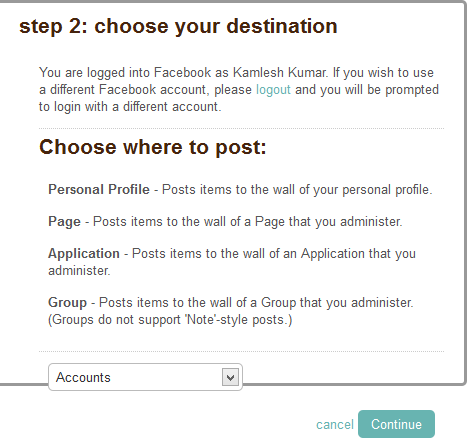
Click on Accounts tab and select appropriate account on which you want to post your article automatically and click on continue button. Now you will see a window like :
Here, on the left side your blog heading and right side facebook link page is available. Now you every post will be automatically posted to facebook.
To add another e.g Tubmlr, Linkedin, Twitter just click on +add button and follow the steps.

PUBLISH YOUR BLOG POSTS TO FACEBOOK PAGE AUTOMATICALLY

|0 comments
Facebook is the best social networking site which is widely used in the world. Every blogger give first priority to sharing his blog on Facebook. Now I am going to share with you the easiest and fastest way to publish your blogger posts automatically on your website's Facebook fan page. Now a days no one has much time to manually publish all blog posts on Facebook page too. But I'm glad you're here at the right place to learn that trick.


Before proceeding to these steps you must have a page on the facebook.


Publish Blogger Posts On Facebook


1. Log in to your Facebook account.
2. Now go to RSS For Pages App and click Install.
3. Now choose the page on your want to publish your blog posts.
4. Now click Add RSS For Pages and allow (Install) the app on your Facebook.
5. Write your website's title in Company Name field and write your Contact Number and check the box of Terms and Services, then press Save Changes.
6. Now write your Blog's feed address and choose the settings according to your need and press Save Changes.

Note: It may take time for your post to publish automatically on facebook after publishing it on your blog.
7. Now click on RSS for pages.
9. Its will open a new page in new tab in your browser.

10. Now you will your facebook page heading and below it RSS icon. Just click on RSS icon.
11. Now you will see you all latest pages of RSS feed has been synchronized. Now just click on Publish button on the right side of the article and your posts will be published on the facebook page as well as facebook account also.
If you have more than one blog and want to publish in same facebook account then you have to follow the whole steps from starting for another blog also.

Share your posts to Twitter, Facebook and Linkedin Automatically

|0 comments
Are you getting bored by sharing your blog post one by one on facebook, twitter and linkedin. By manually sharing you can miss out also. Now, your post will be shared automatically on facebook, twitter and linkedin with twitterfeed. Now you have not to care about facebook, twitter and linkedin that you have shared your post on these services or not.

How to share your posts to Twitter, facebook and Linkedin automatically :

Step by step guide :

1. Go to twitterfeed and created an account if not already and login.
2. Now click on create a new fee.
3. Give the feed name as your blog title and blog url of your blog and click on continue to step 2.
4. After that click on test rss feed on the right side.
5. You will get a message below ok Feed parsed OK means everything is ok.
6. Click on Continue to next step2.
7. After that you will get a message "Feed was successfully created."
8. Just click on Twitter
9. Here click on "Authenticate Twitter" and provide the username and password for twitter account and approve the app for use twitter account. After that click on "Create Service".
10. Do the same process from 8 to 9 for facebook and linkedin account also.
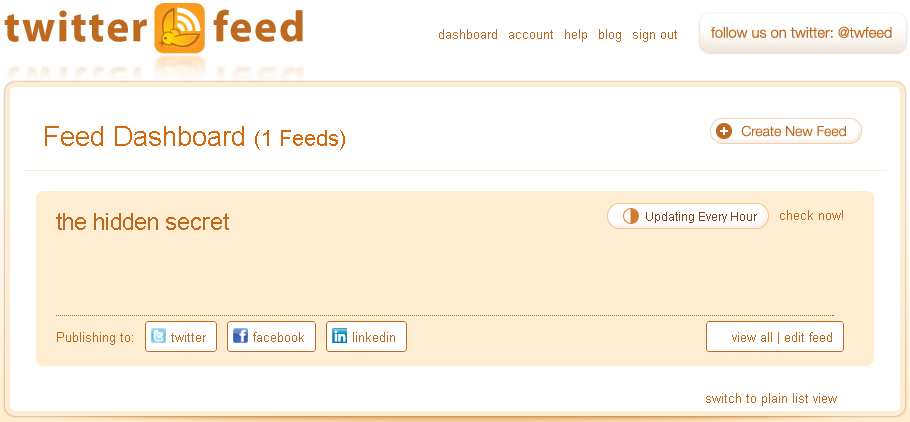
11. After all this process just click on dashboard and you will see screenshot like below.


12. You have successfully completed all the process. Now whenever you will create a new post twitterfeed will automatically share your link to Twitter, facebook and linkedin account. 


After a some time we have gone to twitterfeed dashboard and we have got that my newly created post has been submitted by twitterfeed.
Share