Showing posts with label tricks bootable usb. Show all posts

EaseUS Disk Copy Home Edition 2.3.1

|0 comments
EaseUS Disk Copy is a 100% Safe Free Disk/Partition Copy Software. It is a perfect solution for free disk/partition clone for disaster recovery. EaseUS Disk Copy Home is a free disk/partition clone software for home users only. Regardless of your operating system, file system and partition scheme, through creating a bootable CD it can sector-by-sector copy you disk to assure you a 100% identical copy of the original one. It is a perfect free tool for Data Recovery Wizard to recover files from a backup disk.


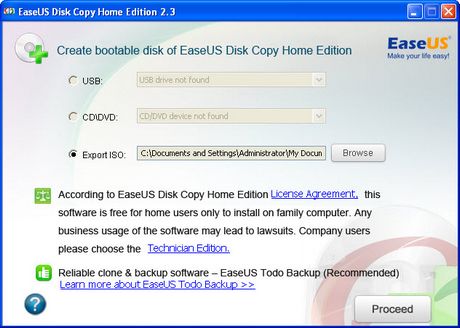
Burning Feature : With built-in burning feature, it can automatically create a bootable CD/DVD or USB disk to copy entire disk easily.
Disk copy: Clones one disk to another sector by sector with a bootable CD.
Sector by sector copy: Makes physical 1:1 copies (clones) of hard disks and partitions which ensure 100% identity to the original.

Partition copy: Copies one partition to another sector by sector with a bootable CD.
EaseUS Disk Copy Home is a potent freeware providing sector by sector disk/partition clone regardless of your operating system, file systems and partition scheme. The sector by sector method assures you a copy 100% identity to original. EaseUS Disk Copy can be used for copy, cloning, or upgrading your original small hard drive to a new larger drive. Simply speaking, it can copy anything from old hard drive including deleted, lost files and inaccessible data. So, the freeware is a perfect tool for Data Recovery Wizard to recover files from a backup disk. However, it cannot backup single file or folder, so reliable backup software - EaseUS Todo Backup with advanced features is recommended.


Key Features

  • It is a very safe and easy way to copy all or part of a hard drive to another hard drive with Disk Copy.
  • With built-in burning feature, it can automatically create a bootable CD/DVD or USB disk to copy entire disk easily.
  • Friendly graphical user interface.
  • Relay disk space for insufficient destination.
  • Support hard disks up to 1 TB.


Create Windows 8 bootable USB with Windows 8 USB Installer Maker

|0 comments

All windows users know that Windows 8 can be installed either by downloading the ISO file or using the Windows 8 Setup. Users who have downloaded the ISO file from internet can install their operating via USB drive also.

Windows 8 USB Installer Maker is a little great tool for creating bootable Windows 8 USB flash drives with a few mouse clicks.
This tool formats your USB drive in NTFS format, extracts all files from the ISO file to the USB, and then writes the boot MBR on to the USB to make it bootable. One need to have a USB flash drive with at least 4GB disk space to use the drive and Windows 7 installed computer for this operation.

Please note that the tool should be launched as administrator. To do this, right-click on Windows 8 USB Installer Maker and then click Run as administrator. Don’t forget to backup data from the USB drive before using to make bootable media.

There is a official guide also available on the official website about this tool. If you stuck somewhere you can refer these guides.


How to Create a MultiBoot USB Flash Drive using YUMI Multiboot USB Creator

|0 comments
Most of users whose profession is installing operating systems, carry a bootable USB with recovery software, Antivirus scanners, Bootable Linux, etc. But the problem is that they need multiple USB Drives for each operating systems. Well, here is a solution: Use YUMI, a Universal Multiboot Installer. YUMI (Your Universal Multiboot Installer), is the successor to MultibootISOs.

Using the tool you can create  Multiboot USB Flash Drive containing multiple operating systems, antivirus utilities, disc cloning, diagnostic tools and more. You can also uninstall images too.
How to create a MultiBoot USB Flash Drive :

1. Run YUMI and follow the onscreen instructions
2. Run the tool again to add more images to your Drive
3. Restart your PC setting it to boot from the USB device
4. Select a distribution to Boot from the Menu. 

According to its official website, YUMI (Your Universal Multiboot Installer) enables each user to create their own custom Multiboot UFD containing only the distributions they want, in the order by which they are installed. A new distribution can be added to the UFD each time the tool is run. If you run YUMI from the same location you store ISO downloads, they should be auto-detected, eliminating the need to browse for each ISO.

Windows 7 or Vista Installers will cause Ubuntu or any remix based on Ubuntu (I.E. Linux Mint) to hang during boot. A quick fix is to temporarily rename the Windows SOURCES folder found at the root of the USB device.

Create Bootable Windows 8, 7, Vista, or XP USB Flash/Pen Drive Quickly with WinToFlash

|0 comments
Windows Users who wants to install windows from USB drive has a good option. You can easily make Bootable USB of Windows 8, Windows 7, Windows Vista or Windows XP through a single software WinToFlash. Now you can create Windows 8, 7, Vista, or the old XP bootable USB key with a few clicks. 

Before starting to make bootable USB make sure that you have a pen drive with 4GB + capacity if you are making a bootable USB flash drive.

Requirements to create bootable Windows USB:

Windows 8, 7 or Vista ISO as per your needs.
Pen drive with 4GB+ (2 GB is sufficient for Windows XP)

Procedures to follow :

1. Insert your USB flash/pen drive to your system and backup all the data from the USB before starting this process as your USB drive will be formatted during the process.

2. Now download WinToFlash tool (download link has been provided below the article).

3. Run the tool, and browse to your Windows 8, 7, Vista, or XP ISO files (make sure that your USB drive letter is correct).
4. Click Create button to begin the bootable USB process. Wait for few minutes to finish the whole process.

After that you have a bootable USB drive in your hand. Now you can install windows operating system with fastest speed in your computer.

Download WinToFlash

Create Windows 8 Bootable USB Drive with Rufus : the fastest tool

|0 comments
I keep writing about bootable USB drive because users can install his operating system in the fastest way. Some of my posts are Create Windows 7 / 8 bootable USB device, Software for making windows 8 bootable, Make bootable USB Windows 8 using WinUSB Maker. Windows users have already a lot of good utilities to create a bootable USB using an ISO file and then install Windows from a USB flash drive. Windows 7 DVD/USB Tool, WinToFlash, and Universal USB installer are the most popular utilities available for creating bootable USB drive.

While every utilities mentioned above do their job very well, the only thing is that all these tools take a large amount of time to transfer the ISO onto the USB. Even though power user prefer creating bootable USB drive via command line to third party tools, novice users always prefer third-party tools for the job.

Users who don’t want to use the command prompt method for creating bootable USB media, for those people Rufus utility is recommended. Rufus is a small utility for Windows and helps you create bootable USB drives. The best thing about this tool is that it’s faster than other tools. According to the developer of the tool, it’s twice as fast as the official Windows 7 USB/DVD Tool, Universal USB installer and UNetBootin tools,  You can see the comparative chart below for the time taken by different tools.
Rufus tool suppost Windows XP (SP2 or later), Windows Server 2003 R2, Vista, Windows and Windows 8, this software also supports Arch Linux, Hiren’s Boot CD, Parted Magic, NT Password Registry Editor, Knoppix, Kubuntu, OpenSUSE, CentOS, Fedora and many other Linux distributions.

Download, run the utility, select your USB drive and browse to the ISO file to begin transferring ISO file contents onto the USB drive and after 4 minutes you will be ready with your bootable USB drive.

Share
