Showing posts with label tricks twitter. Show all posts

Follow Me On Twitter Flash/SWF Widgets For Blogger And Website

Twitter is a world famous social networking sites for bloggers to promote their blogs. Here, I will show you how you can add very cool Twitter Blogger widget to your blogs and websites. Widgets are based on Flash animations and have some nice effects. These buttons can help Twitter Flash Spice up your blogs, Websites and can help you gain more followers on Twitter. These are designed and developed by www.twitterflash.net.

Features:

1.) SWF Files.
2.) Adjustable Size.
3.) Cute Animation.
4.) Link To Twitter.
5.) Different Background Colors.

How To Add In Blogspot?

1.) Go To Your www.blogger.com
2.) Open Your Desire Blog.
3.) Go To Layout.
4.) Click "Add A Gadget" Where You Want To Add It.
5.) Now Scroll To "HTML-JAVASCRIPT"
6.) Click "+" Icon To Add It.
7.) Now Get The Code From The Below Site.
8.) Leave The Title Empty.
9.) Click Save, Now You Are Done.

How To Add In Website?

1.) Just Go To Your HTML File.
2.)  Now Get The Code From The Below Site And Paste It Between <body> </body>.
3.) Save It, Now You Are Done. 

Click Here For Website

Share your posts to Twitter, Facebook and Linkedin Automatically

|0 comments
Are you getting bored by sharing your blog post one by one on facebook, twitter and linkedin. By manually sharing you can miss out also. Now, your post will be shared automatically on facebook, twitter and linkedin with twitterfeed. Now you have not to care about facebook, twitter and linkedin that you have shared your post on these services or not.

How to share your posts to Twitter, facebook and Linkedin automatically :

Step by step guide :

1. Go to twitterfeed and created an account if not already and login.
2. Now click on create a new fee.
3. Give the feed name as your blog title and blog url of your blog and click on continue to step 2.
4. After that click on test rss feed on the right side.
5. You will get a message below ok Feed parsed OK means everything is ok.
6. Click on Continue to next step2.
7. After that you will get a message "Feed was successfully created."
8. Just click on Twitter
9. Here click on "Authenticate Twitter" and provide the username and password for twitter account and approve the app for use twitter account. After that click on "Create Service".
10. Do the same process from 8 to 9 for facebook and linkedin account also.
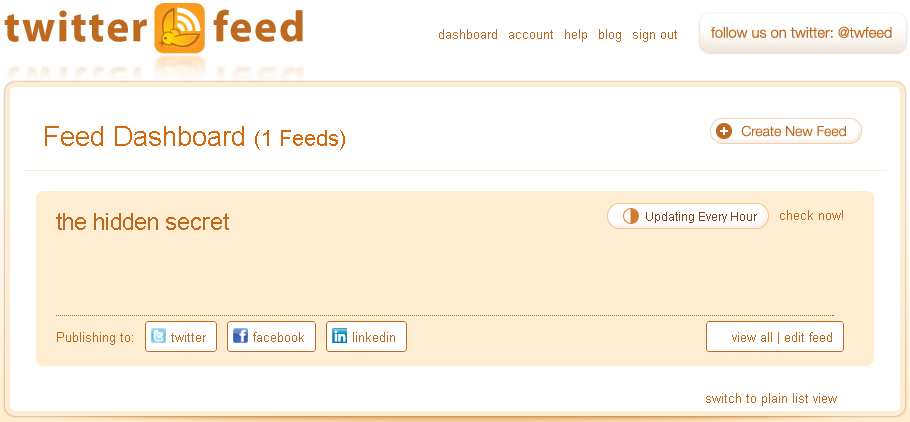
11. After all this process just click on dashboard and you will see screenshot like below.


12. You have successfully completed all the process. Now whenever you will create a new post twitterfeed will automatically share your link to Twitter, facebook and linkedin account. 


After a some time we have gone to twitterfeed dashboard and we have got that my newly created post has been submitted by twitterfeed.
Share