Showing posts with label Install windows XP. Show all posts

Create Bootable Windows 8, 7, Vista, or XP USB Flash/Pen Drive Quickly with WinToFlash

|0 comments
Windows Users who wants to install windows from USB drive has a good option. You can easily make Bootable USB of Windows 8, Windows 7, Windows Vista or Windows XP through a single software WinToFlash. Now you can create Windows 8, 7, Vista, or the old XP bootable USB key with a few clicks. 

Before starting to make bootable USB make sure that you have a pen drive with 4GB + capacity if you are making a bootable USB flash drive.

Requirements to create bootable Windows USB:

Windows 8, 7 or Vista ISO as per your needs.
Pen drive with 4GB+ (2 GB is sufficient for Windows XP)

Procedures to follow :

1. Insert your USB flash/pen drive to your system and backup all the data from the USB before starting this process as your USB drive will be formatted during the process.

2. Now download WinToFlash tool (download link has been provided below the article).

3. Run the tool, and browse to your Windows 8, 7, Vista, or XP ISO files (make sure that your USB drive letter is correct).
4. Click Create button to begin the bootable USB process. Wait for few minutes to finish the whole process.

After that you have a bootable USB drive in your hand. Now you can install windows operating system with fastest speed in your computer.

Download WinToFlash

install windows xp in core i3/i5/i7 processor

|0 comments

Install windows xp in core i3/i5/i7 processor
I am working on such a organisation where computer related problems comes everyday. Recently I was facing a big problem, "I was unable to install neither Windows XP nor Windows Server 2003 32 Bit edition on Core I5 Processor".  When I was trying to install Windows Server 2003 or Windows XP then while installing it was giving Blue Screen Error. Every time I was trying to install same type of problem I was facing. I tried to install both Windows XP as well as Server 2003 32 Bit edition. But could not get success. I tried several ways. I searched through internet but I could not get any good result. 

I tried to install Windows Vista 32 Bit, Windows 7 32 Bit, Red Hat Linux 32 Bit and I got success. But only the problem I was getting  with Windows Server 2003 and Windows XP 32 bit. 

I consulted many experts, rang up to the ShowRoom from where we have purchase the PCs, everybody told that you can't install Windows XP or Windows Server 2003 32 Bit edition on Core i5 processor, because it doesn't support Widows XP 32 Bit or Windows Server 2003 32  Bit. After all this I rang up to Microsoft and he also refused. There was no response from any where. Everybody was telling that its is not possible. Its was my prestige issue. I decided to install Windows XP 32 Bit or Windows Server 2003 Bit by hook or by crook.

Now I tried to install Windows XP 64 Bit edition and I have got success. Then I tried to install Windows Server 2003 64 Bit and then also I got success in installing on the same PC. Then I decided to install Windows XP 32 Bit. I was surprised that I got success in installing Windows XP 32 bit edition. Then after I installed Windows Server 2003 32 Bit and I got success. I could not provide you the screen shot because it is matter of security. But you can believe me It works 100%. 

If you are getting the same problem then I am giving you solution. How to install windows XP or Server 2003 in Core i5/i3 or Core i7 processor. 

What happens when you purchase a new branded PC then it comes Pre-Installed with Windows 7. It is higher version than Windows XP or Windows Server 2003. Its formatting technology is different from Windows XP or Windows Server 2003. Hence, when you try to install Windows XP 32 Bit or Server 2003 32 Bit then it refuses you to install by giving blue screen error. Because, When Windows Vista has been released by Microsoft it was on the  totally different concept from older version. Windows Vista got flopped and then Microsoft decided to launch the upgraded version of Windows Vista and called it Windows 7. Here, Windows Vista and Windows 7 both have been launched with different concept than Windows XP or Windows Server 2003. Hence, when you purchased a PC with pre-installed Windows Vista or Windows 7 and then after you will not be able to install Windows XP 32 Bit or Windows server 2003 32 Bit on that PC. Only solution is that either you do a Low Level Formatting or you install with Windows XP 64 Bit or Windows Server 2003 64 Bit. Then only you can install Windows XP 32 Bit or Windows Server 2003 32 Bit edition. 

Its will help you too much. I am 100% sure by this trick you will get success installing Windows XP 32 Bit and Server 2003 32 Bit edition also in Core i3 or Core i5 or Core i7. 

Note : Blue screen error comes on Core2Duo processor also while installing Windows XP 32 Bit and Windows Server 2003 32 Bit, if you have purchased your PC with Pre-installed Windows Vista or Windows 7. Hence, it is not the problem of your processor.

I hope I have explained correctly. If any problem comes then comment. I will very soon help you.

Install Windows XP from USB Flash Drive using WinSetupFromUSB

|0 comments
Install Windows XP from USB Flash Drive using WinSetupFromUSB
I have already covered how to install windows xp through flash drive. Now i am going to again cover how to install Windows XP from USB Flash Drive using WinSetupFromUSB software. It is less complicated. You can make bootable USB drive through this software for Windows 2000, XP and Server 2003 also. You can process it any version of Windows. Hence, i am going to cover it.


Requirement :


1. Flash Drive / Pen drive capacity 1 GB.
2. Windows XP Original Bootable CD
3. WinSetupFromUSB Software. You can download it from here.


After downloading this software just install it in default location. Its will be installed in C:\WinSetupFromUSB. 


Step 1 : Folder Creation : Create a folder named WINXPCD in C:\ drive (I am giving you guide for installing Windows XP, hence we have named the folder as WINXPCD, you can use any name).


Step 2 Insert USB : Insert USB into your system and Start WinSetupFromUSB from C:\WinSetupFromUSB\ folder.
Step 3 : Don't Select Source Path - You have already copied windows installation files in C:\WINXPCD. Don't locate here your windows installation source path here.

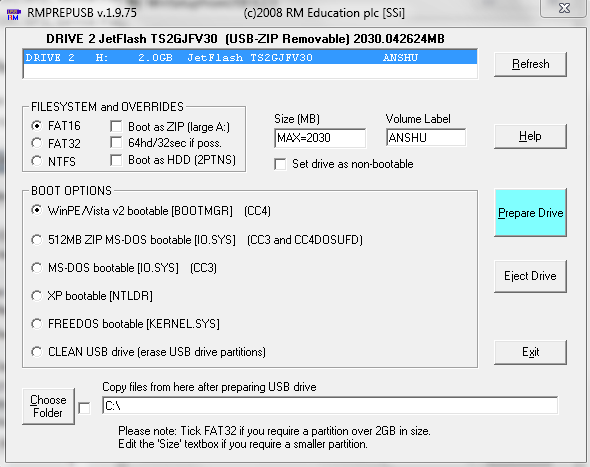
Step 4 : Formatting USB: You need to format your USB before creating the bootable USB, hence take the backup of your USB and click on RMPrepUSB button on right side and its will open a windows like :
Step 4 : Click on "XP bootable [NTLDR] under BOOT OPTIONS. 

Step 5 : Select Windows Installation Folder : Now here click on Choose Folder (at the bottom left) and locate your windows folder which you already have copied through your CD and click on box labeled "Choose Folder".

Step 6 : Click on Prepare Drive. Its will display a window like :
Step 7 : Click on OK button. Its will again open a new window and ask you confirmation. Just click on OK to format your Pen drive and copy windows file to your USB disk.

Now will see a DOS window and after that file copy in progress. After a couple of time your USB Bootable disk will be ready for use.


Note : Through this software you can also make bootable USB installation disk of UBCD4win, WinWilder, Windows Vista, Windows 7, Partition Magic, Linux and other type of bootable disk. 


Now it is up to you, you want to use this free valuable software or want to google search and waste your valuable time.
Share