Showing posts with label tricks usb. Show all posts

NoAutorun Helps Prevent Your Flash Drive From Infecting Your System

|0 comments
There are a lot of ways through which virus or spyware can enter into your computer. It could be browsing the Internet and go to the wrong web site or you can download a file you thought was one thing and it really is another. One of the least common ways for a computer to get infected is from an external device, such as a flash drive, external drive or other external media. NoAutorun helps prevent immediate infection upon inserting a USB or flash drive into your computer. When you will run this tool for first time, you will get Config window :
No autorun is a great tool, in which there are so many options is available of how it works, such as auto starting it, how it minimizes to tray and even lock certain files names that might be suspicious from the get go.

Under the Security header, you want to ensure that “Scan all disks at start” to prevent any USB drive from auto-running software that may harm your system. This means you can manually start up software or browse files at your leisure.
The main screen of No Autorun allows you to see what files, folders and executables have been locked as soon as you scan an external drive.
From there, you can choose to delete Autorun files that are causing issues or quarantine them. You can also unlock files No Autorun automatically locked on your behalf, because it thought it was a threat. 

No Autorun also allows you to utilize USB Disk Soft Write Protect. This protects your drive from being auto-written if something is on your system to begin with and wants to use your flash drive to infect others. You can enable or disable this at any time by clicking “USB Disk Soft Write Protect” and clicking either Enable or Disable.


Download NoAutorun

Disable Specifically USB Devices with Makesoft USB Manager

|0 comments
Many users may have some important and secure data on his computer which he need to protect from others from accessing it. Specially for those who are sharing his computer with friends or some one who is working as a system administrator in some organisation without disabling the USB ports he can not survive. There are few USB devices like storage devices such as pen drives, or USB printer, USB audio devices and USB scanners but we can’t disable the USB ports as disabling it will prevent these devices to connect.
Thus with the help of this free tool called Makesoft USB Manager, we can specifically disable any of these device types and protect our data from theft.

USB Manager is a very easy to use Windows software tool designed to give you full control over the removable drives connected to your computer's USB ports. Moreever it lets you control multiple USB devices at once, USB Manager provides a rather simple interface that shows the connected items and their type. For instance, you can see storage devices, USB printers, USB audio items and USB scanners straight in the main window, with a single click when needed one can disable them.

One can enable the password, start the program automatically with Windows, turn on hotkeys to control the app straight from your keyboard or completely hide USB Manager in your system.
It doesn't slow down the system and it works without a flaw on all Windows versions Windows XP, Vista and Windows 7.


EaseUS Disk Copy Home Edition 2.3.1

|0 comments
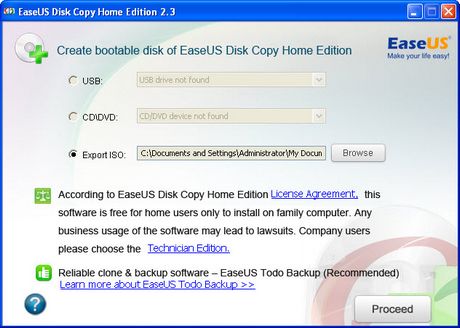
EaseUS Disk Copy is a 100% Safe Free Disk/Partition Copy Software. It is a perfect solution for free disk/partition clone for disaster recovery. EaseUS Disk Copy Home is a free disk/partition clone software for home users only. Regardless of your operating system, file system and partition scheme, through creating a bootable CD it can sector-by-sector copy you disk to assure you a 100% identical copy of the original one. It is a perfect free tool for Data Recovery Wizard to recover files from a backup disk.


Burning Feature : With built-in burning feature, it can automatically create a bootable CD/DVD or USB disk to copy entire disk easily.
Disk copy: Clones one disk to another sector by sector with a bootable CD.
Sector by sector copy: Makes physical 1:1 copies (clones) of hard disks and partitions which ensure 100% identity to the original.

Partition copy: Copies one partition to another sector by sector with a bootable CD.
EaseUS Disk Copy Home is a potent freeware providing sector by sector disk/partition clone regardless of your operating system, file systems and partition scheme. The sector by sector method assures you a copy 100% identity to original. EaseUS Disk Copy can be used for copy, cloning, or upgrading your original small hard drive to a new larger drive. Simply speaking, it can copy anything from old hard drive including deleted, lost files and inaccessible data. So, the freeware is a perfect tool for Data Recovery Wizard to recover files from a backup disk. However, it cannot backup single file or folder, so reliable backup software - EaseUS Todo Backup with advanced features is recommended.


Key Features

  • It is a very safe and easy way to copy all or part of a hard drive to another hard drive with Disk Copy.
  • With built-in burning feature, it can automatically create a bootable CD/DVD or USB disk to copy entire disk easily.
  • Friendly graphical user interface.
  • Relay disk space for insufficient destination.
  • Support hard disks up to 1 TB.


Free Partition Software for USB hard drive Partition

|0 comments
While creating hard disk partition is easy and can be done using any partition manager tool, but how to create partition in your USB Drive. As the price of USB hard drive is falling continuously and demand for more hard disk storage is growing, people now tend to buy a USB hard drive for convenience, while how to manage the USB hard drive becomes a big problem.

To optimize the performance of your USB hard drive, a third party application is needed. EaseUS Partition Master Home Edition, a freeware to manage partition, works as a powerful and magic partition software. With this partition freeware, one can enjoy a wonderful experience of managing your partition like a magic, such as Resizing, Copying, Merging, Creating, Deleting partitions and so on. Especially you can enjoy extend NTFS system partition without reboot and Dynamic Disk Copy.
There are lot of tools that can be used to create partitions, some are free and some are not. EASEUS Partition Master Home Edition is totally free for home users with USB hard drive supported.

This partition freeware works perfectly with hardware RAID and Windows 2000/XP/Vista/Windows 7 32/64 bit Operating Systems. Moreover, with user-friendly interface, you can partition your USB hard drive with very simple operations. So no matter if you are computer expert or not you can perform USB hard drive partition easily. The most shining point of this freeware is that your data is completely protected during the process of partitioning your USB hard drive.

How to partition USB hard drive by this freeware:

1. Launch EaseUS Partition Master.

2. Select the hard disk partition to be resized and click Partitions > Resize/Move partition.

3. On the disk map, current size of the partition is displayed on the top of the dialog box. The map also depicts the used and unused space within the partition and the free space surrounding the partition (if any exists). The minimum and maximum sizes that you can resize a partition appear below the map.

4. Position the mouse pointer on the left or right partition handle.

5. The mouse pointer changes to a double-headed arrow.

6. Drag the handle to the partition size you want.

7. Click OK. And you have done it.


The tool is free only for the Home users which can be downloaded from the link below.

How to Create Multiboot USB Drive: Install Windows 7, XP From Same USB Drive

|0 comments
How to Create Multiboot USB Drive:
Install Windows 7, XP From Same USB Drive
Earlier, we have posted article about : Install Windows XP from Flash Drive and How to create Windows 7/8 USB Drive. In this article we have guided that how you can create windows xp bootable USB and how you can create windows 7 bootable USB drive. In this procedure if you want windows XP and 7 both then you have to use two USB flash drive. Today, I will show you how you can make both Windows XP and 7 bootable in a single USB drive at a time.

WinSetupFromUSB free utility allows you to create a Multiboot USB drive to install Windows XP and Windows 7 from the same USB drive. No need to prepare your USB stick separately. Even the tool works in both Windows XP and Windows 7 separately also.


Creating the Multiboot USB Drive for Windows 7 and XP


Creating the multiboot USB drive is too easy and involves four simple steps. Before getting into the process, make sure that the USB drive that you have, is minimum 4 GB of volume (recommended 8 GB or higher) and formatted with FAT32 file system. Once you are ready, download WinSetupFromUSB (link is provided below the article) and extract at any location of your computer.


Follow the steps below:


1. Insert the formatted USB drive in the USB post of your computer and run the WinSetupFromUSB.
2. Make sure that the the utility has detected your USB drive.
3. Now enable the option Windows 2000/XP/2003 Setup selecting the check box and browse to the Windows XP installation file location. Next, enable the option Windows Vista/7/Server 2008 Setup/PE/RecoveryISO and browse to the Windows 7 installation files’ location. In both of the cases, if you have the ISO images, extract them by WinRar or 7-Zip.
4. Click the Go button to get started. It might take several minutes.
We have discussed the process for only Windows XP and Windows 7, you can also add Windows Vista as well as Linux distros also.


Download WinSetupFromUSB
Share