Showing posts with label speed up your system. Show all posts

How to clean up your Window Explorer and Internet Explorer right-click context menu

|0 comments

Right Click Context Menu is so much important the you can not survive without it in Windows operating system. It does not only provide us with a simple and short ways to perform many functions but also make our task easy to use. We depend upon right click context menu from opening a file with a program, sending it to some device, or performing other functions like cut, copy, paste, to scanning the system, burning the disc or viewing the properties of a file, all we need to do is just right click and select the appropriate option.

While using the right click menu is easy and convenient but sometimes if the list is huge it can make the system sluggish as the list will take lot of time to populate. Moreover it can happen that when you uninstall some third party software, the option linked to it is not removed from the right click context menu thereby making the list messy.
At these situations you want clean up and i think you must clean up the right click menu. Hence, for removing manually the options not in use you can use a simple tool named MenuMaid. With this tool not only Windows Explorer right click menu, you can also edit or clean up the Internet Explorer right click menu easily.

All you have to do is just download the tool from the link provided at the bottom of the article, unzip it to extract the exe file and run it, no installation is required. You will see the checkboxes of the items that are present in the right click menu. You can uncheck any of them to remove from the list. It will change your system immediately. If you want to restore it again then you again simply click on that and it will be restored back immediately. 

The tool is free and simple to use and works great on Windows XP, Vista and 7.

Speed Up your Computer using RamDisk

|0 comments

Speed Up your Computer using RamDisk
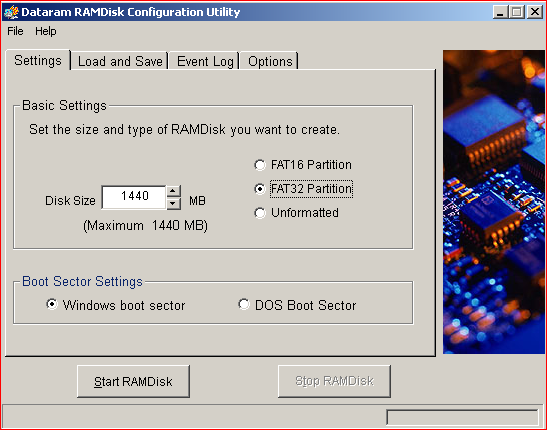
When computer gets old then it becomes slowly slowly slow. There are many tools on the internet that claims to speed up your system. I was surfing through the internet and I have got RamDisk. RAMDisk is the right product for you if you have a disk I/O bound application that is small enough to fit in main memory. RAMDisk is also great for storing frequently accessed data such as temp files, page files and database index files. RAMDisk is freeware up to 4GB disk sizes. RamDisk can be used in any Intel or AMD-based system with at least 512 MB RAM. Just define the size in Disk Size and click on Start RAMDisk and its will create a virtual RAM for you.
RamDisk can do the following easily for you :


1. Speed up Internet page load times
2. Control what files and programs are stored into memory (loaded at boot time)
3. Create temporary disks for added security
4. Speed up disk-to-disk activities such as video encryption and audio ripping
5. Accelerate databases
6. Reduce compile times


Download RamDisk Latest Version

Best free tools speed up PC

|0 comments

Best free tools speed up pc
I have already written many article how to speed up your PC like : Best Registry Cleaner FreeSpeed Up your system using CCleanerHow to speed up computer. Now I am going to show speed up PC using Autoruns software. 
Autoruns tool is only 523KB in size but it is very useful. Autoruns shows you what programs are configured to run during system bootup or login, and shows you the entries in the order Windows processes them. These programs include ones in your startup folder, Run, RunOnce, and other Registry keys. You can configure Autoruns to show other locations, including Explorer shell extensions, toolbars, browser helper objects, Winlogon notifications, auto-start services, and much more. Autoruns goes way beyond the MSConfig utility bundled with Windows Me and XP.

Autoruns Hide Signed Microsoft Entries option helps you to zoom in on third-party auto-starting images that have been added to your system and it has support for looking at the auto-starting images configured for other accounts configured on a system.

Autoruns shows detailed path of autorun entry. Autoruns shows invalid entries also. Suppose you have uninstalled any software. But by default windows uninstaller does not delete all the files and registry entries related to that software. Autoruns help you to find out invalid program. 
You can see in above screenshot invalid entry has been highlighted by Autoruns. You can delete it by just right click on invalid entry and select delete option. As per my view its will help you too much to speed up your PC. Just take a test on your own PC.

Best Registry Cleaner For Free

|0 comments

Best Registry Cleaner For Free

I have already discussed in my article "Speed up your system using CCleaner" that how system goes slow and how you can speed up. Here, I am suggesting some good Registry Cleaner for free which has made only for cleaning and speed up your system. You can use any free software for keep clean to your system for free  :


Wise Registry Cleaner Wise Registry Cleaner is a very good registry cleaner software. Wise Registry Cleaner can be used in all the versions of windows including Windows 8. It also supports 64-bit Windows versions. This free registry cleaner utility can be downloaded from here.

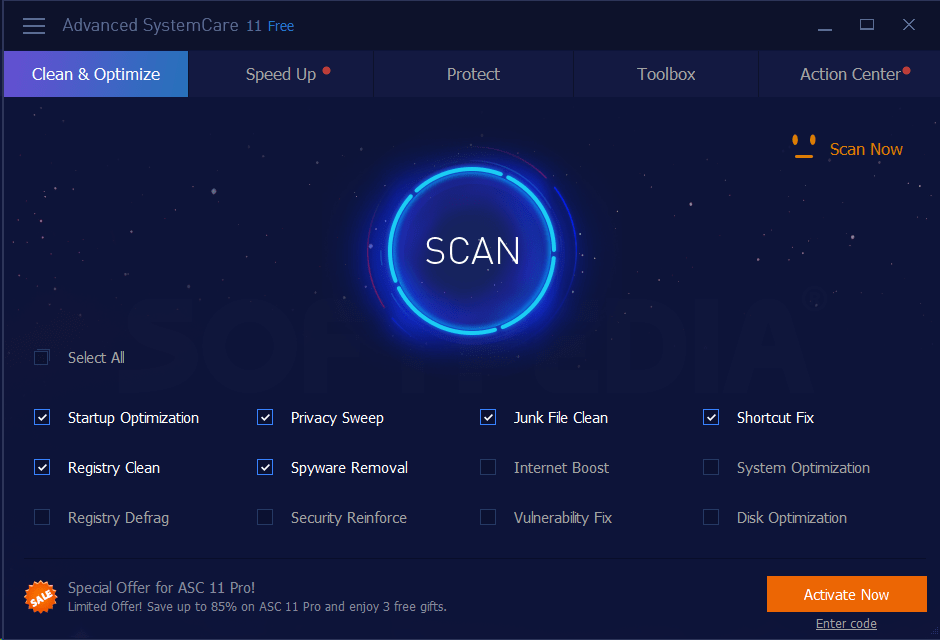
Advanced SystemCare Free - Advanced SystemCare Free from IObit is a excellent free registry cleaner program. Advanced SystemCare Free is very easy to use, has an excellent interface, and includes several other "system care" capabilities program, including a registry defragment tool. Advanced SystemCare Free works in all version of Windows including Windows 8. According to IObit, both 32-bit and 64-bit versions of Windows are supported. 

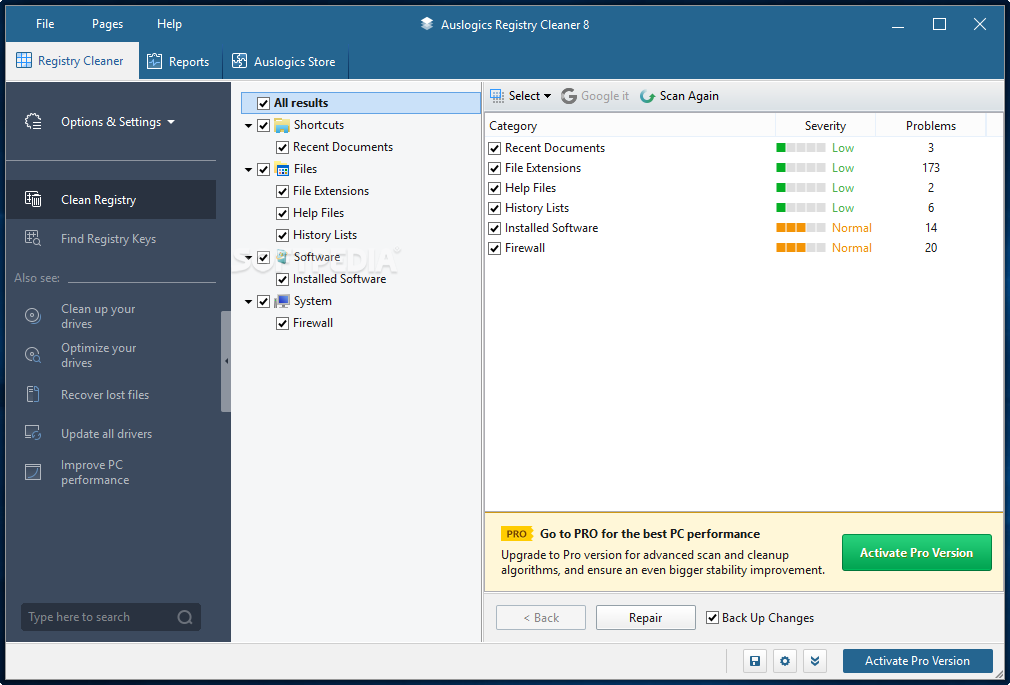
Auslogics Registry Cleaner - Auslogics Registry Cleaner is another great registry cleaner tool. It is compatible with all version of windows including Windows 8. It supports both 32-bit and 64-bit versions of Windows.

Glary Registry Repair - Glary Registry Repair is another good freeware registry cleaner. Glary Registry Repair is pretty simple to use. Glary Registry Repair works in Windows 8, Windows 7, Vista, XP, Server 2003, and older Windows operating systems like Windows 2000, NT, ME and 98.

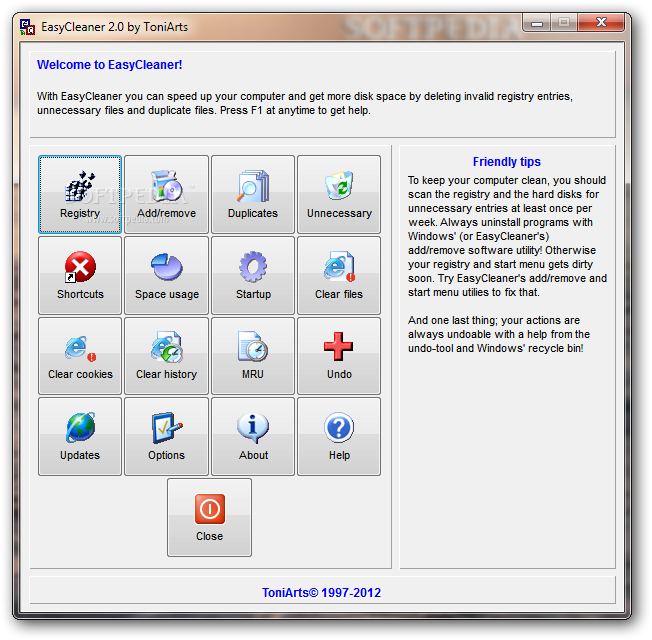
EasyCleaner - EasyCleaner is one of the oldest and most trusted free registry cleaner. It is a solid registry repair tool. EasyCleaner has many tool as you can see in screenshot below :
Comodo System Utilities - Comodo System Utilities is also another good freeware registry cleaner program. It's simple to use and scanned the registry in a reasonable amount of time. The Comodo System Utilities tool is designed for Windows 8, 7, Vista, Server 2003, and XP. It works on both 32-bit and 64-bit versions of Windows.

Little Registry Cleaner - Little Registry Cleaner seems to be as good a registry cleaner. Little Registry Cleaner is an open source registry cleaner that works on all version of Windows including 32-bit and 64-bit versions.

Eusing Free Registry Cleaner - Eusing Free Registry Cleaner is another free registry cleaner. Eusing Software says that it works on version of Windows.

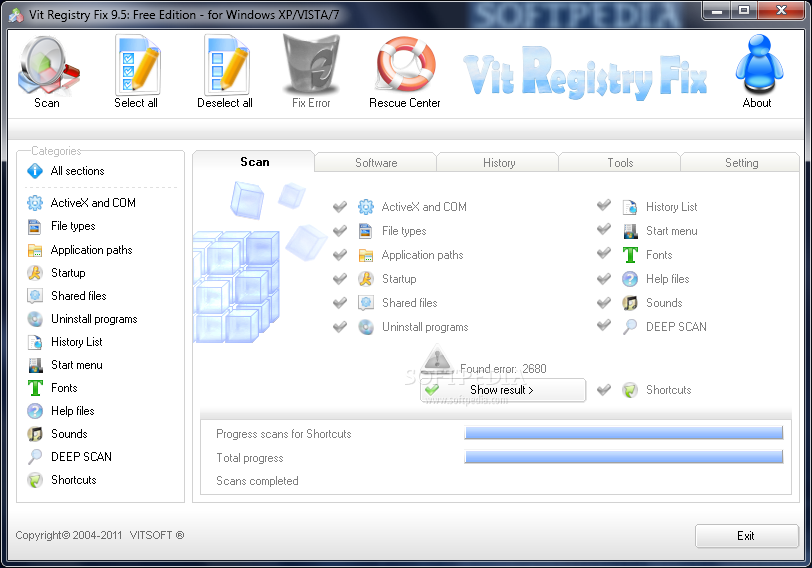
Vit Registry Fix Free - It is another free registry cleaner which you can use. It works on all version of windows.

Free Windows Registry Repair - It is another great tool to scan errors in your registry for free. Owner of this software claims to be work on all versions of windows including Widows 8. It can repair invalid entries in your registry.

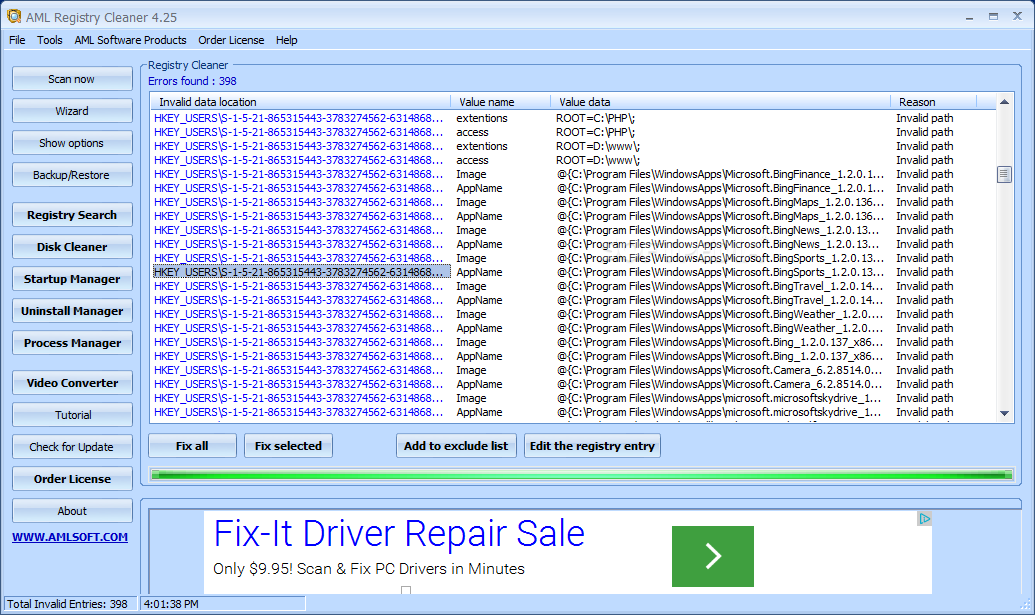
AML Registry Cleaner - AML Registry Cleaner is another great tool for scanning and repairing your system. 
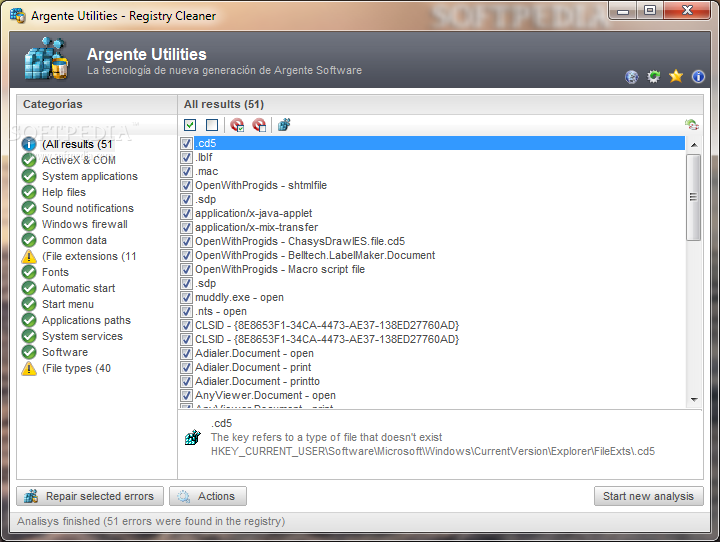
Argente - Registry Cleaner - Argente Registry Cleaner is a tool that detects and repairs any problems found in the Windows registry entries. Useful to run when you start receiving errors from Windows regarding one or multiple .DLL files.
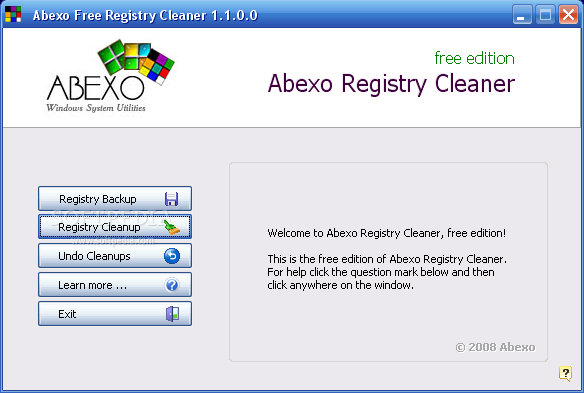
Abexo Free Registry Cleaner - Abexo Free Registry Cleaner is a tool that offers a simple solution when it comes to scanning your registry items in order to fix errors and boost your computer's performance.
In your idea still if some free registry cleaner is available then you can  suggest me, i will update it.

Speed up your system using CCleaner

|0 comments

Speed up your system using CCleaner
System gets slow through many reasons, like - invalid registry entries, lot of temporary files, low ram, low hard disk etc. I have already posted article about "how to speed up computer without third party software". Now I am going to provide article "Speed up your system using CCleaner". 
CCleaner is a very tiny utility which will help you to increase your system speed by clearing junk files, registry etc. It is totally free for home users. It cleans windows temporary files, browser cookies of all major browser like - mozilla firefox, google chrome etc. CCleaner takes a little time to clean your system. You can delete startup programmes also which slow down your computer at the time of startup your computer.  It can create system restore points also (it will help you to restore your system to last good configuration of your system). CCleaner has a inbuilt Uninstall utility also which you can utilize. When you uninstall any software from your computer then it left many files and registry entries in your system, which makes computer slow. If you will uninstall through this utility then its will clean all left over file which has been left by normal uninstall.
Share