Showing posts with label registry hack. Show all posts

Download and Export Registry from Remote Windows PC with Remote Registry Exporter

|1 comments

Users who are working as a network administrator for those specially EMCO Remote Registry Exporter is great freeware tool. Suppose as a network administrator you have to change some key in your client PC then it is a very difficult task to go there upto the client PC and then then do the necessary changes and then come. Hence, for those users EMCO Remote Registry Exporter is great free option.

EMCO Remote Registry Exporter is a simple, free and useful tool for network administrators (large networks and small home networks) that helps you export a whole registry or extract specified registry keys from remote PCs in automatic mode and save them as .reg files to the specified folder. Through this tool  registry export operation can be launched on demand or scheduled and executed on multiple remote PCs simultaneously at a defined time.
The user interface of this freeware program is too simple and guides you through all the essential steps needed for exporting the data. One wants to customize the application and change the interface design by selecting a skin of your choice can do easily. The program has a set of skins with many styles.

One can initiate the remote registry export operation by just defining a list of keys to export and the list of PCs where export should be done. PCs in the active directory and in the workgroups get listed automatically, making it easier for you to select target PCs. When remote operation is configured you can launch it immediately, save it as a task for quick execution at any time or schedule it for an automatic execution on schedule. There’s a built-in scheduler available for this purpose i.e. to automate the registry export options.
If the export tasks are scheduled, they are displayed on the calendar view, similar to Outlook calendar and are executed by the program on the defined date and time. You can see a report for every executed remote operation on the Task Execution Results view. It also includes execution status for every PC and complete error information in case there is an operation failure. Hence, if you are a network administrator, then as per my suggestion one should must use this tool.

Re-enable Services and Windows Features Disabled by Virus Instantly

|0 comments
If you are a windows users from a long time then, you must have come across many computer virus attacks till the date. You might have noticed that there are many different kind of computer virus and malware, each having their own type of adverse effect on the computer. Even if you have successfully removed the virus from your system, your computer might have disabled some features.

Most of these viruses affects computer and disables many Windows programs like Folder Options, Registry Editor, cmd, taskbar, system restore, task scheduler and many other features. Even if you have removed the virus from your system, these features are disabled and need to be re-enabled back before they can be used again. But a normal computer user can’t re-enable them back as these involves a very complex operation.
Recently we have got a tool that can help you in this regard called Tangosoft’s Re-Enable II (or you can say Re-Enable 2.0). As the name of the tool suggests, this tool can re-enable many windows functionalities and services in just single click. You just need to make sure that the virus has been removed else the changes might not take effect. If it takes affect also then it might possible that after restarting the computer virus will again disable it. Hence, it is strongly recommended that you clean your computer with a good antivirus.

With one click Re-enable will repair the following windows features:

Restore F8 safe mode menu
Registry editor 
Command console “cmd” 
System restore 
Start menu Run command
Task manager 
Task scheduler 
Safe mode  
Right click context menu 
My computer properties 
Folder options 
Windows explorer search 
start menu search 
Reset file and folder attributes
Ms Config  
Restore explorer registry key
Re-enable will also edit hosts file 
Scan and delete Autorun.inf files


The tool is free to use for personal use and requires .net framework 3.5 Sp1 or above or above for installation. You can also try the portable version of Re-Enable 2 but it would be of larger size as it already contains the required .Net Framework files with it.

WHAT IS SOLUTION OF "REGISTRY EDITING HAS BEEN DISABLED BY YOUR ADMINISTRATOR"

|0 comments
Have you ever encountered the error, i.e. “Registry editing has been disabled by your administrator” on Windows XP or any other Windows NT Operating system, this may help you perfectly.
I have encountered the above error while patching registry. Even regedit command was not worked for me.

Here is a simple solution which can work for you.

First Method  For Windows XP :


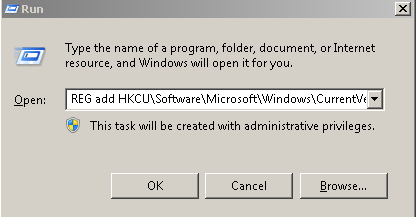
Just Click on “Start >> Run” or press “[window key + R ]“ and type or paste following command exactly as given below. An hit ENTER from keyboard or click ok.


 REG add HKCU\Software\Microsoft\Windows\CurrentVersion\Policies\System /v DisableRegistryTools /t REG_DWORD /d 0 /f 
Second Method For Windows XP :

Using the Group Policy Editor (Windows XP Professional only)
Just Click on Start, Run and type gpedit.msc and press ENTER
Go to the following location:

User Configuration | Administrative Templates | System

Double-click Disable registry editing tools and set it to Not Configured

Exit the Group Policy Editor

Note: If the setting already reads Not Configured, set it to Enabled, and click Apply. Then revert it back to Not Configured. This ensures that the DisableRegistryTools registry value is removed successfully.


Method For Windows Vista and Windows 7:

In the second method you can enable your registry by simply using FixWin small utility. It is less than 1 MB in size. 
Download the FixWin Latest Version from the link provided after the post. Just run the software it is portable. It will not not get installed in your system. Click on System Tools and on the right side you will see "Enable Registry Editor..............." as in above screenshot and after that on right side you will find fix button. Just click on Fix button and you have done. It works with all version of windows e.g. Windows Vista, Windows 7 etc.

Customize Logon prompt with your Own Words In Windwos XP

|0 comments

Sometimes, it happens that you want change your computer look, so if anybody comes and see your computer then , wow! how you have done it. You can also customize your windows through many software. But I will tell you how to do through a small tricks. Here, you can do through a small hack of windows. Here we are explaining how to customize logon screen of windows.

What is customize logon screen? - It is also a logon screen but customized. When you will logon to your computer then your own words will be displayed there.

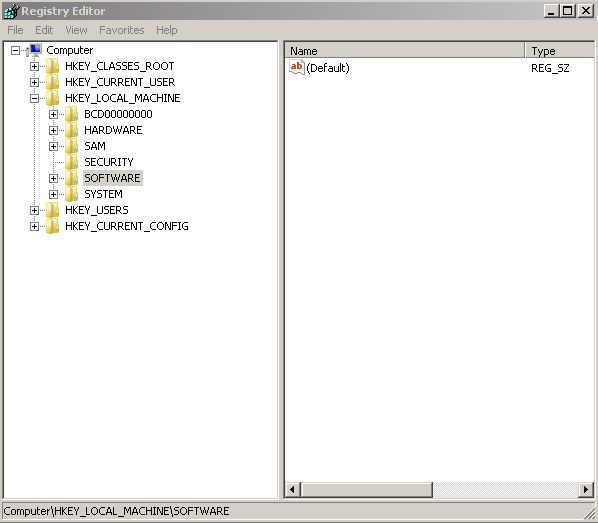
If you want to customize logon screen then, Open Registry by going to Start then Run, entering regedit and Navigate to [HKEY_LOCAL_ MACHINE\SOFTWARE \Microsoft\ Windows NT\CurrentVersion\ Winlogon] . In right pane, look for key by the name "LogonPrompt". Set its value to whatever text you want to see displayed at login screen.
Share